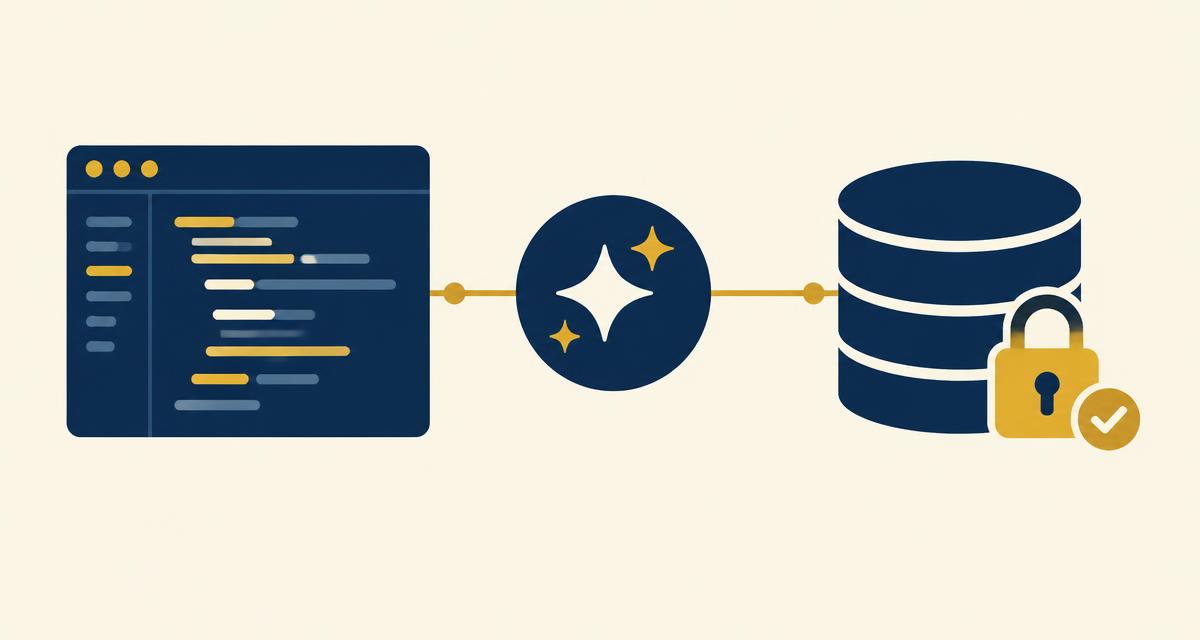
The short answer: Qoder writes the code, but it cannot set up a database by itself. Connect Butterbase from Qoder's Connectors in about two minutes and the agent gets a real Postgres database with auth, storage, functions and search that it can create, query and verify while it builds.
Qoder writes good code. What it cannot do by itself is set up a database.
So the pattern goes like this: the agent writes a migration, reports that it is done, then writes the rest of the app assuming that worked. The failure surfaces later, and by then the mistake is buried under everything built on top of it.
Butterbase fixes that by giving the agent a real backend it can see. It can create tables, read them back, add rows, and check its own work before moving on.
What You Need Before Starting
- Qoder installed and open on a project
- A Butterbase account, created during the connect step if you don't have one yet
Step 1: Connect Butterbase
- Open Qoder on the project you want to build in.
- Open Extensions and find Butterbase under Database & Analytics, then click Install.
- Go to Extension management, find Butterbase in Connectors, and click Authorize.
- The browser opens to Butterbase. Sign in, or create an account if there isn't one yet.
- Qoder reopens with Butterbase authorised.
That is the whole setup. No API key to copy, no dashboard to open.
Step 2: Verify
Before building anything real, ask Qoder to check it's connected.
Check that you're connected to Butterbase, then tell me which tables my project has.
A real connection answers with the actual project — the tables it can see, the schema it can read. An empty schema is fine, it means the agent looked and found nothing yet. One that never landed says it has no database access, or writes SQL and asks you to run it yourself. If that happens, go back to Step 1 and authorise again.
Then ask for something small and watch where it goes.
Create a tasks table with a title, status and due date, and add one sample row.
Open the Butterbase dashboard. The table should be there in the database, and the sample row should be in it. If both are, the connection is good. If they are not, Qoder is writing code that looks finished while nothing reaches a database, which is the failure this whole setup exists to avoid.
Step 3: Start building
From here it's just Qoder. You can start building the app in plain language and the backend arrives with it: a table whose access rules live in the database, logins, a place for files, and a function for anything that needs a private key.
Build a task tracker. Users sign up, add tasks, and each user sees only their own.
What changes is what happens after. With live database access, Qoder reads the result back — two tasks under different owners, queried separately — so it finds its own mistake instead of reporting that the rule looks correct.
Search across your own data and calls to AI models use the same connection, so neither needs a second key or a second console. Keep asking for things; nothing here has to be rebuilt later.
Editor or Quest?
Editor suits small changes, where each one should be visible as it lands. Most of the above.
Quest suits longer jobs left running unattended. This is where live database access helps most, because the agent verifies each step instead of guessing and carrying the mistake forward. A good Quest prompt is the table, login, files and server logic in one go, with "verify the isolation before moving on" added at the end.
Troubleshooting
- The agent writes SQL and asks for it to be run manually. It has no live access. Re authorise in Extension management, under Connectors.
- The browser did not return to Qoder. Start again from Connectors rather than reloading the browser tab.
- It is using the wrong project. Re authorise and check the project selection.
- A change made in the Butterbase dashboard is not visible to the agent. Ask it to read the schema again. It only knows what it saw earlier in the conversation.
Before launch
Read the per user rules the agent wrote, including the one on search. These are what stop users seeing each other's data, and the defaults are sensible but they are not a review.
Test with two accounts across tasks, files and search.
A self hosted Butterbase instance works the same way, but the connector has to be pointed at it rather than a fresh hosted project. Related reading: Build a Full-Stack App in Dyad with Butterbase and Why AI Coding Agents Fail at Backends.
Frequently asked questions
Open Extensions, find Butterbase under Database & Analytics and install it, then go to Extension management, find Butterbase in Connectors and click Authorize. That leads to Butterbase to sign in, or creates an account if there isn't one, then returns to Qoder.
No. Qoder plans and writes code. A connector like Butterbase provides the database and lets the agent create and query it directly.
Usually because it cannot see the database. It assumes a migration applied and keeps going. Live access lets it check instead of assuming.
No. Authorising the connector creates one if there isn't one already.
Ask for per user access when the table is created, then make the agent prove it by querying as two different users. Then test it manually before launch.